Connecting to the Cluster
What is a Cluster?
Section titled “What is a Cluster?”Before we jack in, we need to know what we are connecting to.
In the MSSQL universe, the closest analog to a MongoDB Cluster is the SQL Server Instance.
- SQL Server Instance: A single environment that hosts multiple databases.
- MongoDB Cluster: A group of servers (called a Replica Set) that hosts multiple databases.
The key difference? A Cluster is a team. It typically consists of three servers holding the exact same data. If the leader (Primary) goes down, one of the backups (Secondaries) immediately takes command. We don’t connect to a single machine; we connect to the team.
The Connection String
Section titled “The Connection String”To connect, we need a Connection String. This is a long URL that contains the address of the cluster as well as the credentials to access it.
Phase 1: Retrieve the String
Section titled “Phase 1: Retrieve the String”- Go to the Atlas Cluster Dashboard.
- Click Connect.
- Click MongoDB Shell (mongosh).
- Copy the connection string provided. It looks like this:
mongodb+srv://<username>:<password>@cluster0.abc123.mongodb.net/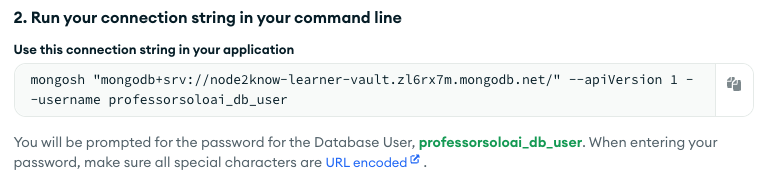
Fig 1: MongoDB Shell (mongosh) connection string.
Phase 2: The Handshake
Section titled “Phase 2: The Handshake”Open your terminal and paste the command.
Replace <username> with the credentials saved earlier.
It will prompt you for the corresponding password .
mongosh "mongodb+srv://cluster0.abc123.mongodb.net/" --username <username>When it asks for the password, type it in (it will be invisible) and hit Enter.
Verify Success
Section titled “Verify Success”We will know we are in if we see a prompt that looks like this:
Enterprise cluster0-shard-0:PRIMARY>We have breached the mainframe. (Okay, we just logged in).
⏭ Creating Databases and Collections
Section titled “⏭ Creating Databases and Collections”Let’s get building. We have data to store.